YTGET

YouTube · Facebook · X · TikTok · Instagram · Threads

DelphiCon 示範用鍵盤快捷鍵取代滑鼠操作 IDE 並改寫程式碼

YouTube 影片筆記

DelphiCon 示範用鍵盤快捷鍵取代滑鼠操作 IDE 並改寫程式碼

原片標題:Code Faster in Delphi - DelphiCon 2020

原片說明
Learn more about Embarcadero Technologies products at https://embarcadero.com Code Faster in Delphi Paperback – September 26, 2020. Don't touch that mouse! Hands-on the keyboard, and eyes front. You're about to embark on a Bootcamp to tone your coding muscles, sharpen your shortcuts, fix forms faster, and accelerate your career as a Delphi Programmer. To subscriber to our channel, click the link below - https://www.youtube.com/channel/UCMmsCQhkz-WlJ-IVBzPhbgA/?sub_confirmation=1 Embarcadero tools are built for elite developers who build and maintain the world’s most critical applications. Our customers choose Embarcadero because we are the champion of developers, and we help them build more secure and scalable enterprise applications faster than any other tools on the market. In fact, ninety of the Fortune 100 and an active community of more than three million users worldwide have relied on Embarcadero's award-winning products for over 30 years. For more information about Embarcadero Technologies Inc, please call at +1 888.233.2224 to speak with one of our professionals today! or simply visit Our Website - https://www.embarcadero.com/ Appointments: https://m.me/embarcaderotech https://www.facebook.com/embarcaderotech Main: 512.226.8080 - [email protected] Sales: 888.233.2224 option 1 - [email protected] Media Relations: 512.226.8080 - [email protected] Support: 800.523.7070 - https://www.embarcadero.com/support Address: 10801 North Mopac Expressway, Building 1, Suite 100, Austin, TX, 78759, United States LET'S CONNECT! Contact Us: https://www.embarcadero.com/company/contact-us Facebook: http://www.facebook.com/embarcaderotech Twitter: https://twitter.com/EmbarcaderoTech Linkedin: https://www.linkedin.com/company/embarcadero-technologies/

我學新快捷鍵的時候也會有那種「哇原來可以這樣」的爽感,Alister 說他每次學到一個新招都還是會興奮,這我完全懂。這場 DelphiCon 2020 的場子,他從頭到尾都在示範怎麼把手從滑鼠上拿開,鍵盤按一按就把表單排好、程式碼重排、變數宣告縮短,中間還穿插一段 Q&A,聊書、聊鍵盤、聊正規表達式到底該不該碰。
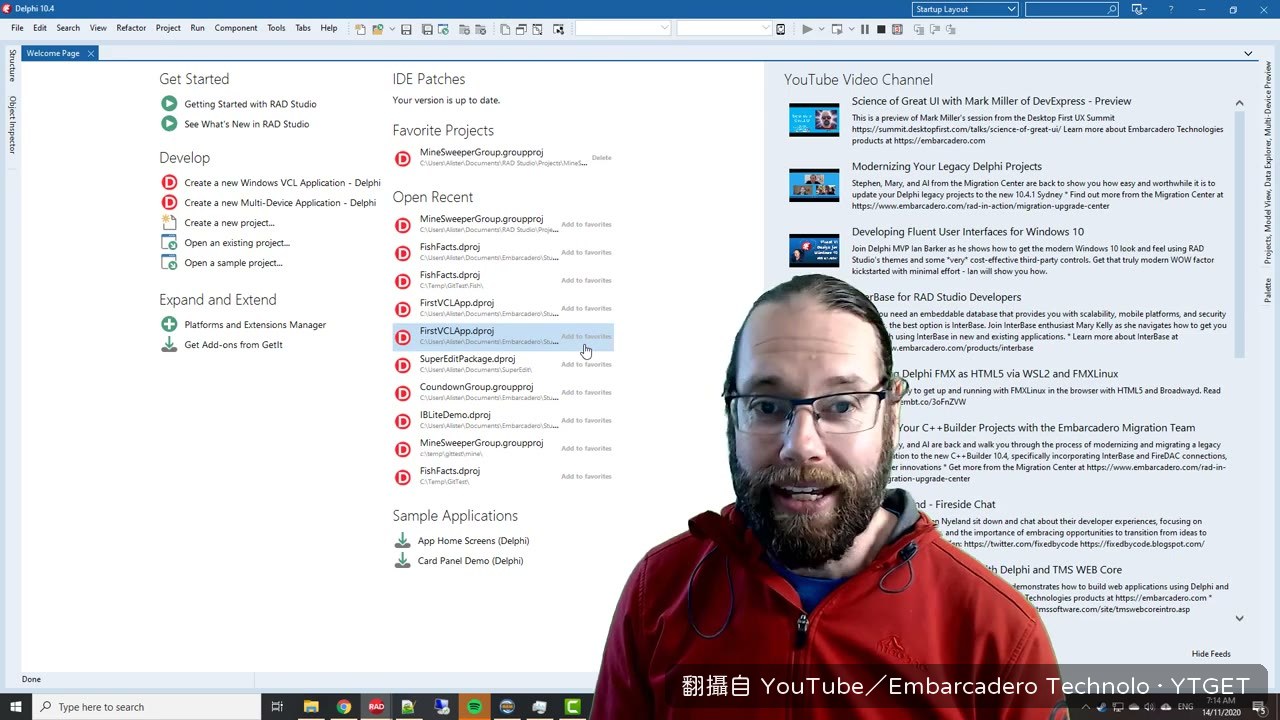
學到新快捷鍵時的興奮感
學到新快捷鍵時的興奮感01:15

影片時間軸

  1. 00:56開場先講鍵盤快捷鍵,說滑鼠操作 IDE 其實很慢
  2. 02:21示範 Ctrl-click 從欄位跳到 setter 再跳回來
  3. 03:17Ctrl-Shift-P 同步方法宣告與實作
  4. 05:00用 Ctrl-Shift-1 到 3 設書籤,在長檔案裡跳來跳去
  5. 05:32進 Get It Package Manager 裝外掛,Ctrl-B 一鍵安裝
  6. 06:24把常用按鈕拖到工具列,多出來的空間留給程式碼
  7. 07:50打左括號自動補右括號,選取區塊還能智慧包覆
  8. 09:30用 Alt 加滑鼠拖曳做區塊選取,調整選取範圍
  9. 11:02進 Tools Options 設定 uses 一行一個,Ctrl-D 格式化全檔
  10. 12:18開新 VCL 應用程式,示範表單設計的對齊與間距工具
  11. 18:07把按鈕複製到剪貼簿,用 View as Text 手改元件型別
  12. 20:25改用 TDirectory 與 inline 變數改寫搜尋檔案的迴圈
  13. 24:33用正規表達式從網頁抓 112 張圖片的 URL
  14. 29:07進 Q&A,聊新書、鍵盤選擇與正規表達式的取捨
  15. 45:07回答複製表單當範本的技巧與後續寫書計畫
  16. 63:59主持人收尾,感謝 Alister 並預告下一場
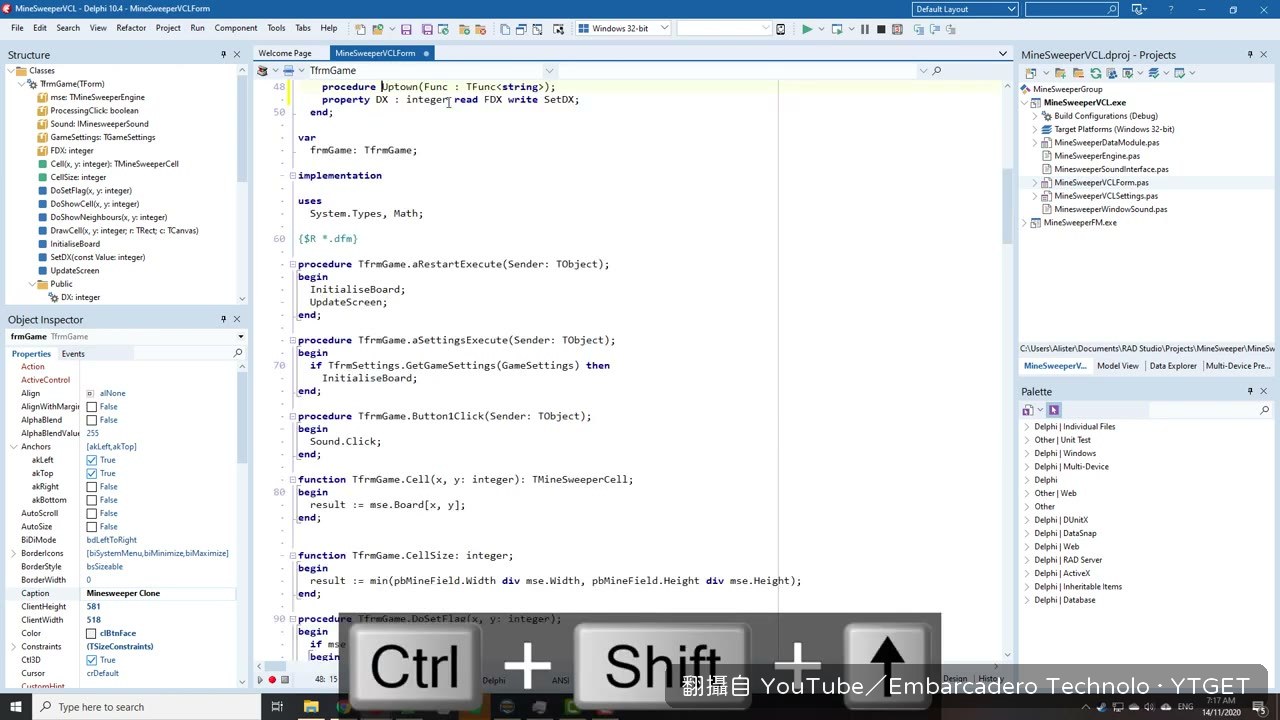
Ctrl-Shift-P 同步宣告與實作
Ctrl-Shift-P 同步宣告與實作03:17

滑鼠才是拖慢你的元兇

他一開始就把話講白:用滑鼠操作 IDE 很慢,鍵盤快捷鍵才是生產力的來源。整場的核心論點就是這個,把每天重複幾十次的小動作換成按鍵。Ctrl-click 跳進 setter、Ctrl-Shift-P 同步方法、Alt-Left 回上一個位置,這些動作單看都很小,但累積起來就是差距。他還提到自己會把工具列按鈕藏起來,只留真正在用的,換取更多程式碼空間。
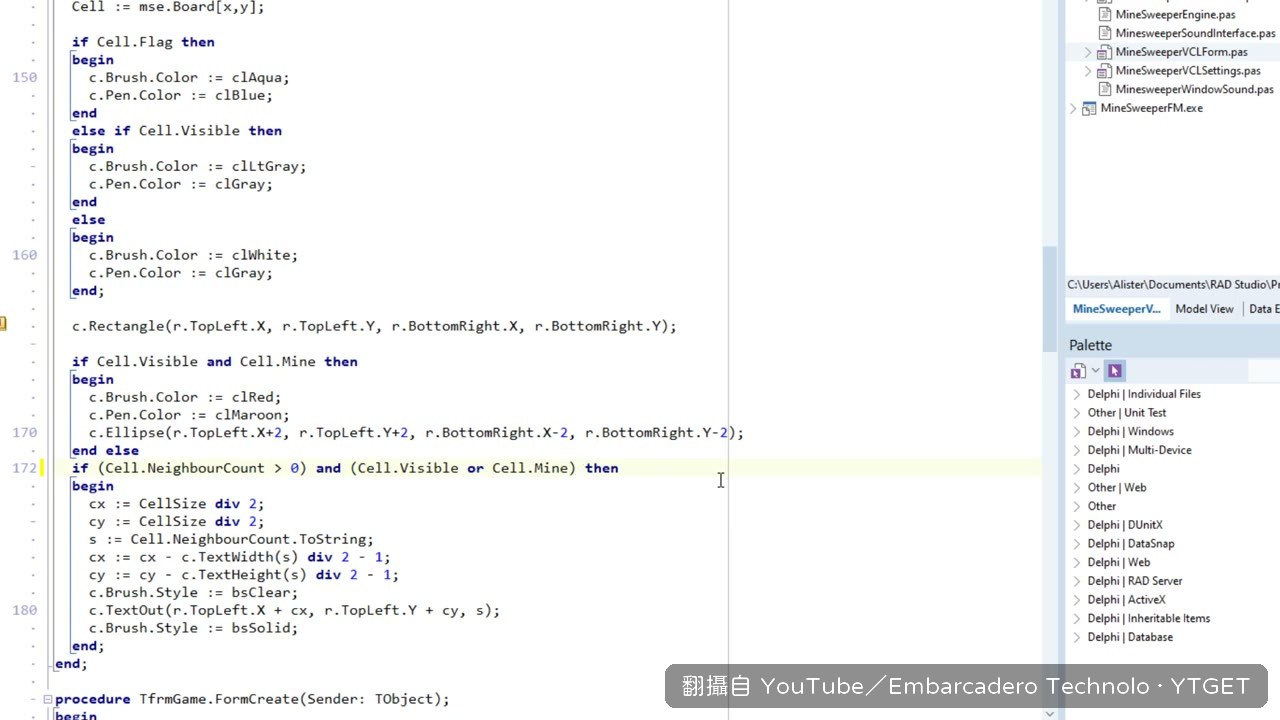
打括號自動補上另一半
打括號自動補上另一半07:50

表單排版靠對齊線就夠了

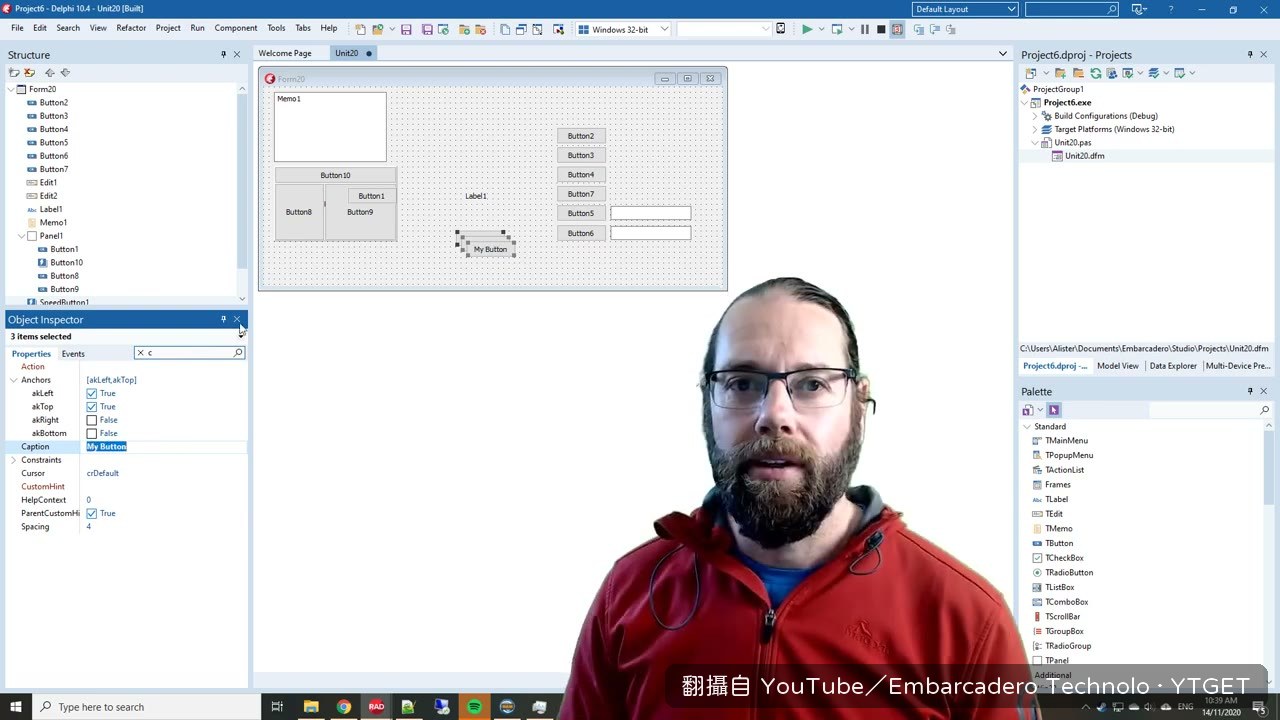
這段進到 VCL 表單設計,重點放在對齊與間距。拖動控制項時會出現藍色與粉紅色的對齊提示線,按住 Ctrl 或 Shift 可以微調位置,選取多個按鈕後能一次等距排列。他也示範把按鈕拖進面板容器、用 Structure view 選取,還有把按鈕複製到剪貼簿後用 View as Text 直接改元件型別,從 TButton 換成 TSpeedButton 再貼回去。這段節奏偏慢,但對常做表單的人來說是實用招。
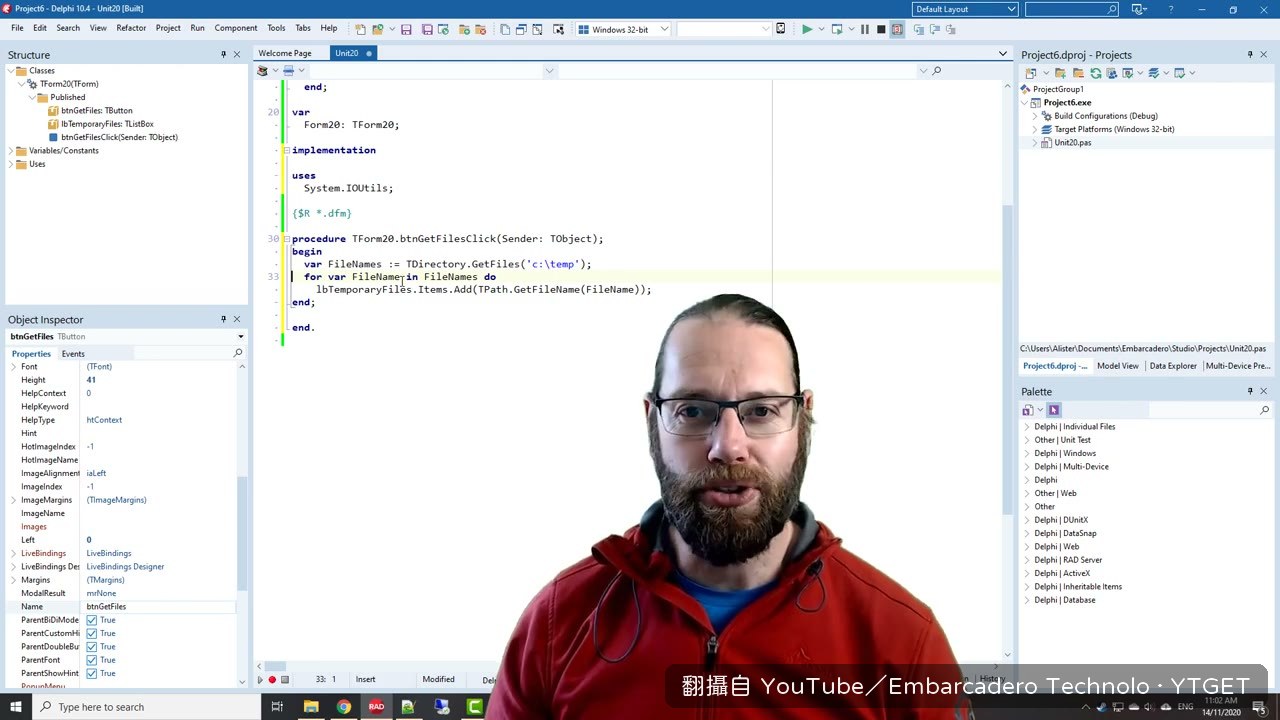
用 inline 變數改寫檔案搜尋
用 inline 變數改寫檔案搜尋20:25

inline 變數讓迴圈少寫好幾行

他拿一段用 FindFirst、FindNext 搜尋檔案的舊程式碼當例子,改寫成 TDirectory 搭配 inline 變數,行數差不多但每行更精簡。inline 變數的好處是宣告當下就初始化,編譯器自動推斷型別,變數的作用範圍也縮小到需要的地方。他特別提醒這樣寫雖然短,但可讀性要自己拿捏,不是每個人都習慣把宣告塞進運算式裡。這段是整場少數談到語言新特性的地方。
三行正規表達式抓完 112 張圖
三行正規表達式抓完 112 張圖24:33

正規表達式三行抓完網頁圖片

示範用 NetHTTPClient 抓網頁,再用正規表達式把圖片 URL 全部撈出來,放進清單方塊。他強調同樣的事用 Pos、Copy、Delete 這類字串函式也做得到,但正規表達式可以省下可觀的時間。後面 Q&A 有人引用「用正規表達式解決問題,現在你有兩個問題」的老笑話,他也承認正規表達式不好讀、不好維護,自己也是靠 Google 拼出來的,但值得花時間學基本語法。
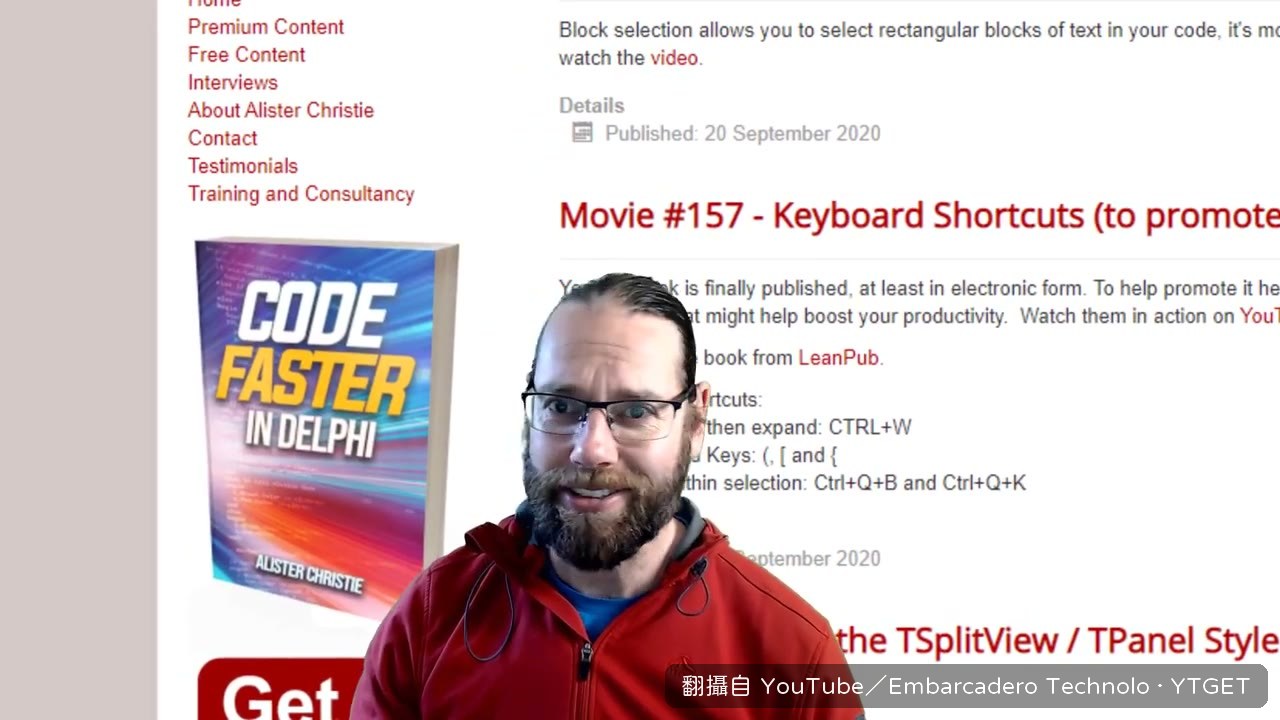
Q&A 聊鍵盤與寫書
Q&A 聊鍵盤與寫書29:07

Q&A 從鍵盤聊到出書

後半段開放提問,話題很雜:有人問怎麼把格式化綁到存檔按鈕、有人問複製表單當範本、有人問巴西買不買得到書。他花了不少時間講機械鍵盤,自己用 Kinesis Freestyle Pro 分離式鍵盤,覺得這錢值得花。也談到寫 Delphi 書很難賺錢,但讀者回饋讓他覺得值得。整段沒有新技術示範,比較像閒聊,想學東西的人可以跳過。

值得下載嗎

如果你天天寫 Delphi,前四十分鐘的快捷鍵與表單技巧值得留下來當複習索引;如果你只是想看語言新功能,重點集中在 inline 變數與正規表達式那兩段,其餘 Q&A 可以快轉。

覺得這篇筆記有幫助嗎?
YTGet 編輯室|看完影片整理的筆記,細節以原片為準。

連線中

影片封面

擷取畫面

輸入時間點,例如 3:20、3.20 或 200

影片皆已含音訊。檔案越大準備時間越久,完成前請保持頁面開啟。